4. Accessing AutoStub
To access AutoStub, use any standard web browser client (such as Google Chrome, Firefox, or any other browser). The application can be accessed either by logging in as a Registered user or Sign-Up to login as registered user.
4.1. Signing in and out of AutoStub
To sign in to AutoStub
If you are a Super Admin, in your browser’s address bar, enter the url given to you to access AutoStub Login page.
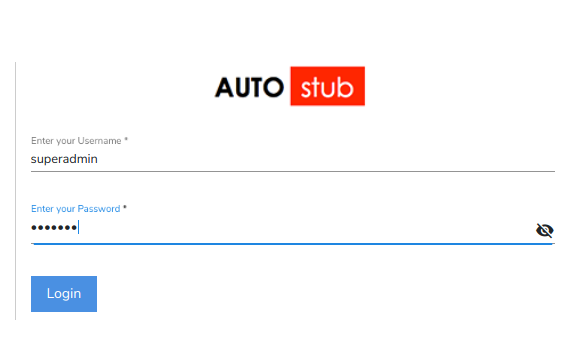
Fig. 4.1 Super Admin login
If you are an admin/user, in your browser’s address bar, eenter the url given to you to access AutoStub Login page.
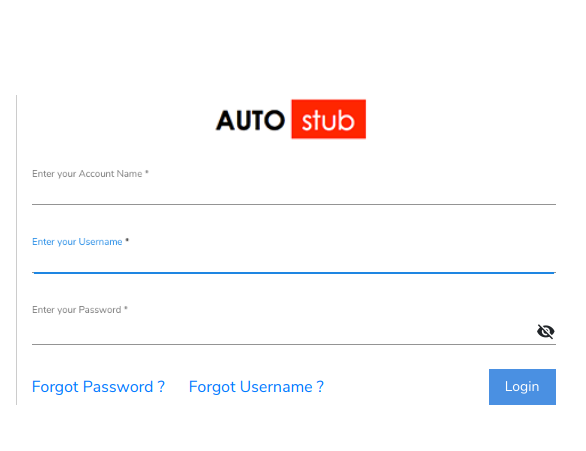
Fig. 4.2 User/Admin login
On the Login page, in the Enter your Username field, enter your username and in the Enter your Password field, enter your password.
Click Login.
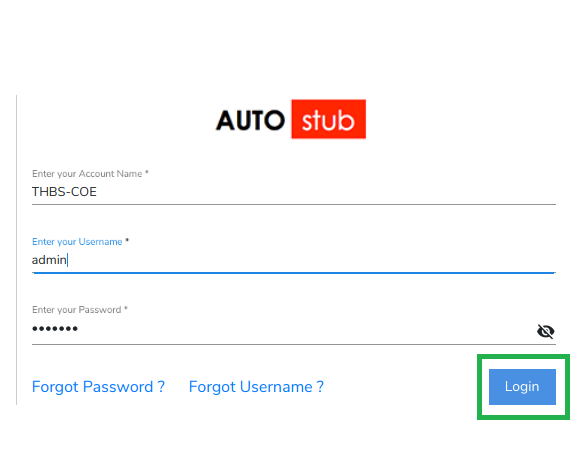
Fig. 4.3 Login
The landing page is displayed based on the user role assigned to you: Super Admin, Admin and User. Visit the User Management section for more details.
To sign out of AutoStub
On your dashboard, click the hamburger menu
 and click Logout to exit AutoStub application.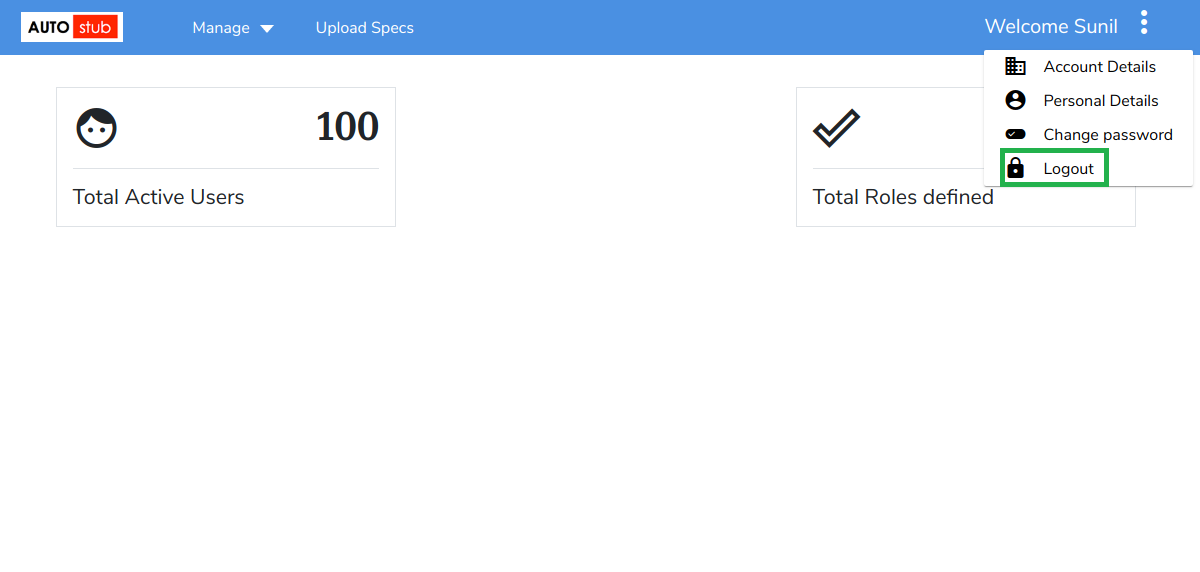
Fig. 4.4 Logout
4.2. Forgot username
The Forgot Username feature allows you to retrieve a forgotten username.
On the Login page, click Forgot Username?.
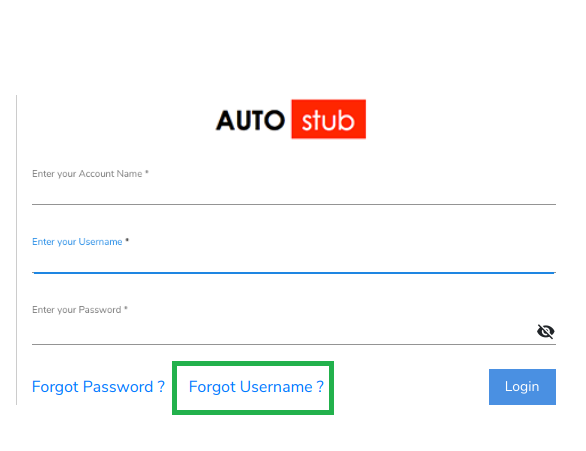
Fig. 4.5 Login – Forgot Username
Enter the Account Name and the Email ID and click Get Username. Your username is sent to your registered email address. Click Discard and go back to login page to return to the Login page.
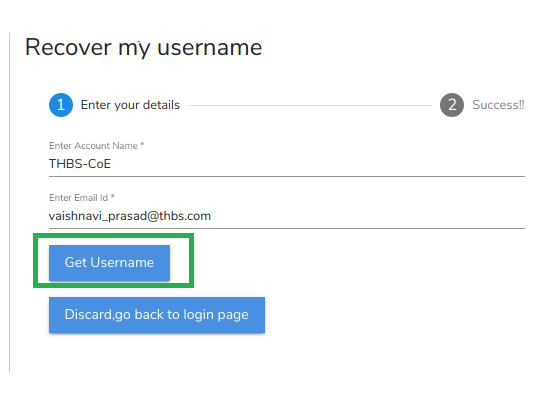
Fig. 4.6 Get Username
When your password is updated, a success message is displayed. Click Go to Login page to return to the Login page. Click Reset my password to reset your account password.
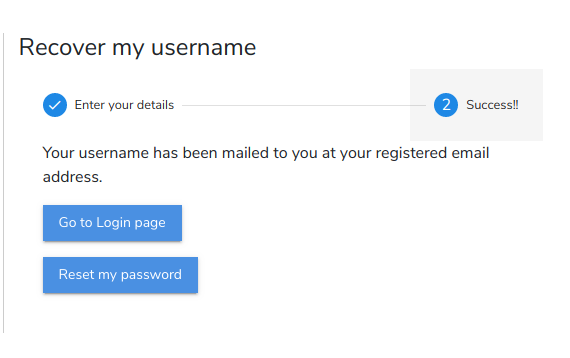
Fig. 4.7 Success message
You can either reset your password from this page or using the Forgot password feature. The steps for resetting the password is the same in both the scenarios.
4.3. Forgot password
The Forgot Password feature of AutoStub allows you to reset your account password and regain access to your account. Resetting your account password involves OTP verification via your email ID.
On the Login page, click Forgot Password?.
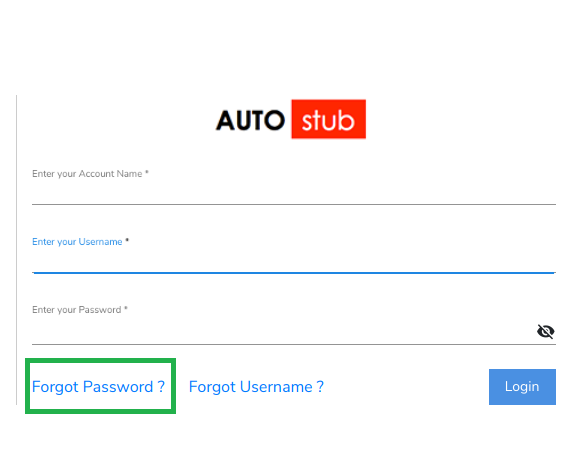
Fig. 4.8 Login – Forgot Password
Enter the Username/Email ID associated with your AutoStub account and click Get OTP to receive an OTP on your email ID. Click Discard and go to Login page to return to the Login page.
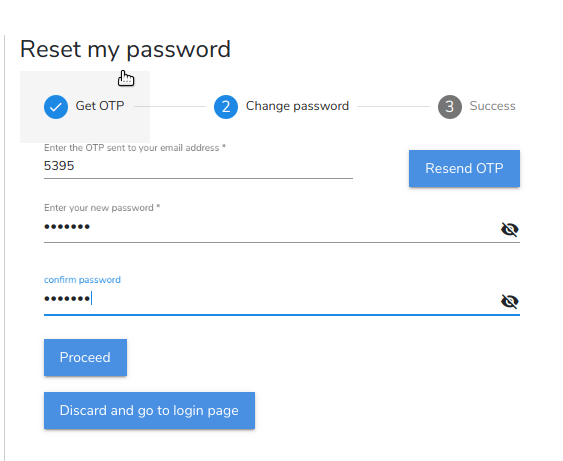
Fig. 4.9 Get OTP
In the Enter the OTP sent to your email address box, enter the OTP sent to your email ID. Click Resend OTP if you want to receive the OTP again.
In the Enter your new password box, enter the new password that you want to use from here on. In the Confirm Password box, re-enter the new password.
Click Proceed.
When your password is updated, a success message appears as shown below. Click Reset Again to repeat the password reset process (Steps 2-5).
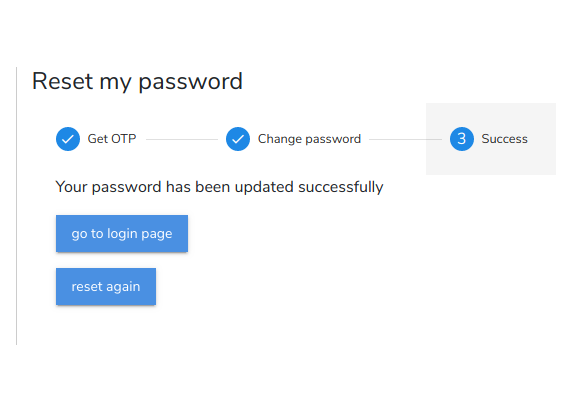
Fig. 4.10 Success message
The next chapters give a detailed account of the features of AutoStub.